How I Provisioned a Multi-Account Environment Using AWS Control Tower
Managing multiple AWS accounts can get overwhelming fast especially when you’re thinking about governance, access control, auditing, and security. That’s why I decided to explore AWS Control Tower for setting up a well-structured, multi-account environment that’s scalable and secure from the start.
In this post, I’ll walk through how I used AWS Control Tower to launch a landing zone, organize my accounts using organizational units (OUs), and implement guardrails to maintain governance across environments.
🔍 Why I Chose AWS Control Tower
Instead of manually creating and configuring AWS accounts, Control Tower automates the entire process from setting up AWS Organizations to provisioning logging and audit accounts with best practices already baked in.
I wanted a solution that could help me manage several accounts under one roof, with centralized logging, identity access, and security guardrails. AWS Control Tower delivered just that.
🛠️ Setting Up the Landing Zone
Using the AWS Console, I launched Control Tower from the Management Account and followed the setup guide. It took care of:
- Creating a root organization and OUs (like Core and Custom)
- Provisioning the Log Archive and Audit accounts
- Enabling AWS Config and CloudTrail for governance
- Applying preventive and detective guardrails
- Integrating IAM Identity Center for unified user access
After setup, I also created a custom OU called Infrastructure, where I started grouping new accounts based on function like networking, shared services, and dev/test environments.

To visualize everything I set up, here’s a high-level architecture of the AWS Landing Zone I built using AWS Control Tower.
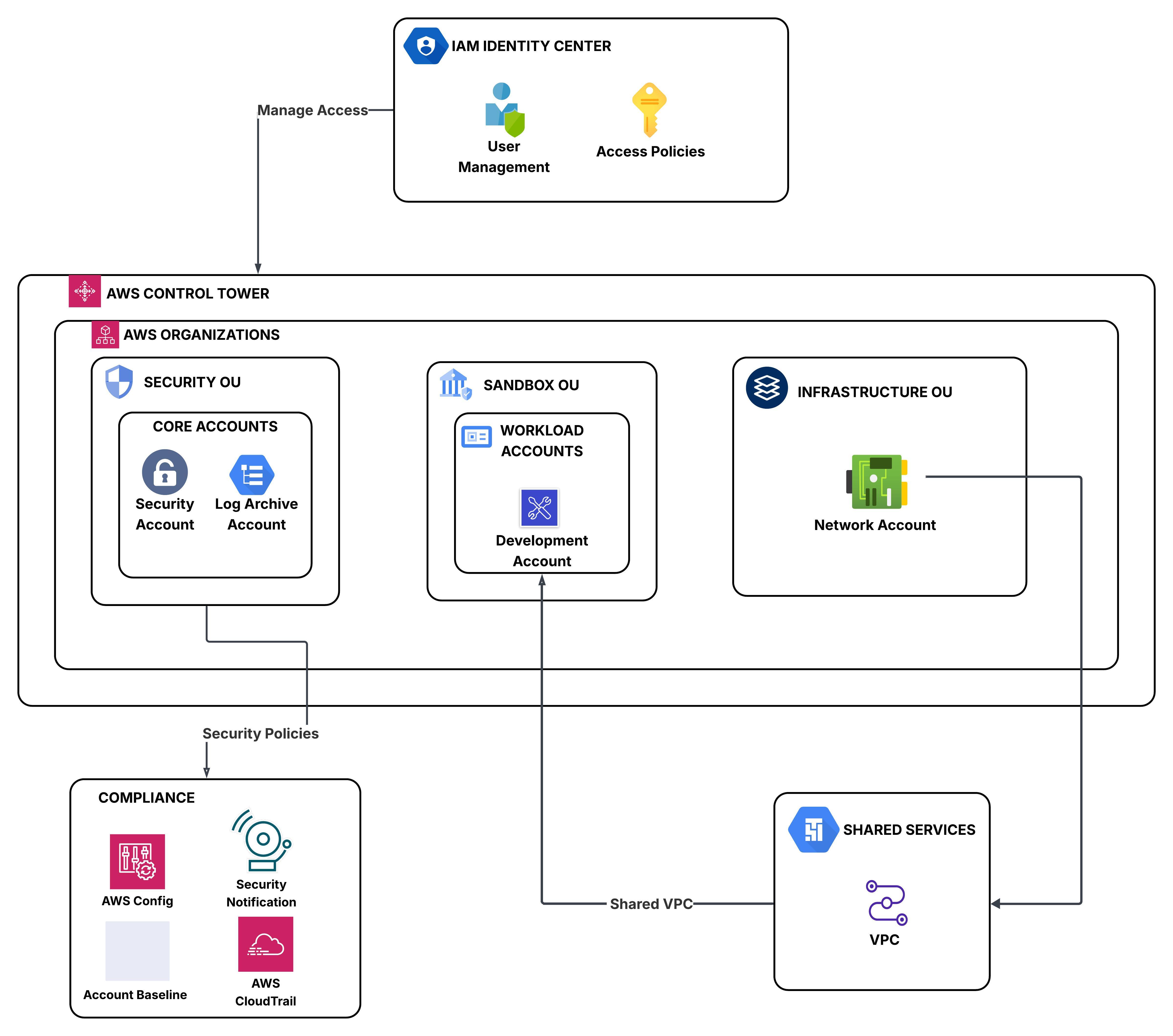
As shown in the diagram, the environment includes a Management Account at the top, Organizational Units (Core and Infrastructure), and the necessary shared accounts for logging and auditing.
This structure helps enforce compliance from day one. I didn’t have to manually configure logging, enable AWS Config, or worry about setting up guardrails across accounts.
📸 Console Walkthrough
Here are a few screenshots to give you a feel for what it looks like in the AWS Console:
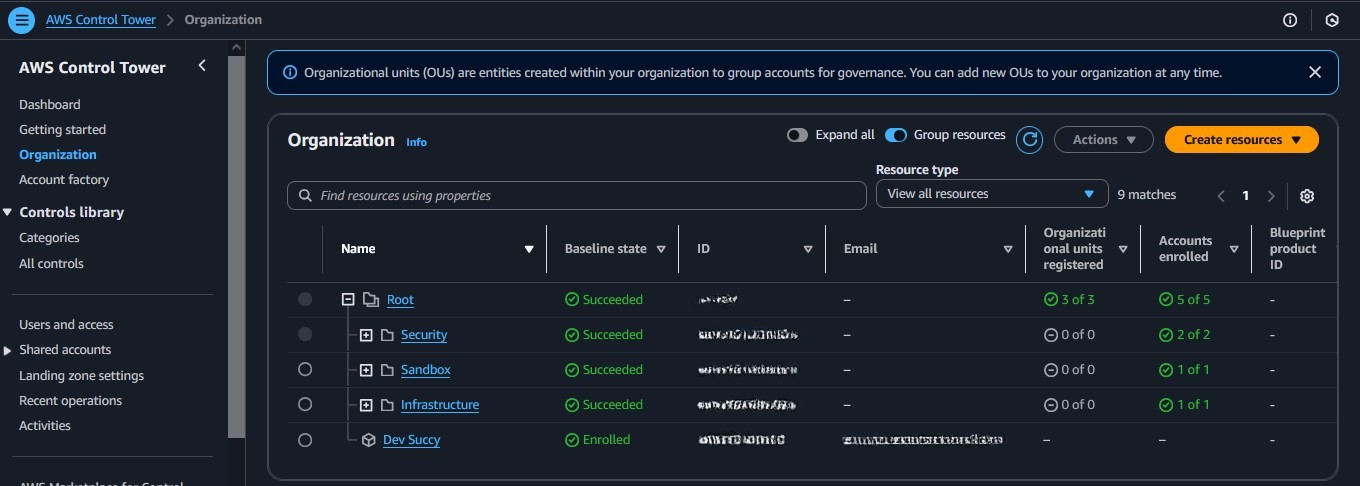
📌 AWS Organizations
AWS Organizations helped me group and structure multiple accounts under relevant OUs like Security for monitoring, Sandbox for testing, and Infrastructure for shared services. This made it easier to apply guardrails and manage resources consistently.”
📌 AWS IAM Identity Center (Access Portal)
The IAM Identity Center (formerly AWS SSO) provides centralized user access to all your AWS accounts from one portal. It’s part of how AWS ensures secure, scalable identity and access management.
To manage access securely across accounts, I used AWS IAM Identity Center. It allows me to log in once and switch roles between accounts like Development, Security, and Network, based on permissions I’ve assigned.

💡 Key Benefits I Noticed
- Centralized Control: Everything from account creation to security monitoring is handled in one place.
- Best Practices by Default: Control Tower enforces AWS-recommended settings automatically.
- Scalable Setup: I can easily add new accounts under different OUs with proper governance in place.
- Audit & Logging Ready: All activity is automatically logged for compliance and traceability.
✅ Final Thoughts
Using AWS Control Tower helped me streamline the way I manage AWS environments. With its automated landing zone setup, I now have a secure, scalable, and fully governed multi-account environment that follows AWS best practices.
This setup forms the foundation for all my future AWS projects from networking to CI/CD with the right controls already in place.
Up next, I’ll be exploring how to integrate Service Control Policies (SCPs) and build out my Infrastructure OU further with VPC sharing and centralized security tools.